Set Fill Date
The Set Fill Date function allows you to enter a Fill Date that is different from the current system date. This overrides the current system date, providing the ability to backdate prescriptions. The modified Fill Date is transmitted with the online claim and is used as the prescription's Fill Date during adjudication. In provinces with EHR integration, the Set Fill Date is also recorded on the patient's EHR.
The allowable number of days for backdating prescriptions varies across Third Parties. Confirm the allowable range with your provider before backdating prescriptions.
When Set Fill Date is used for a new prescription or reauthorization, the Written Rx Date in the Rx Detail Extended tab is updated with the same date. If the Written Rx Date of the prescription is not the same day your pharmacy dispenses the prescription, you can edit the written date in the Rx Detail Extended tab.
Once the prescription has been filled, the Fill Date cannot be modified (i.e., you cannot use Set Fill Date on a Rebilled prescription).
To backdate a prescription:
-
Process the incomplete prescription into Rx Detail.
-
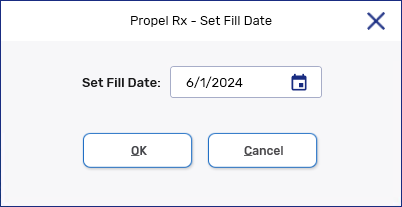
Select Rx > Set Fill Date. The Set Fill Date window opens.
-
Enter a date or select one using the calendar button. You can only choose a date that is BEFORE or equal to the current date.
When the Set Fill Date window opens, it defaults to the current system date. If the Cancel button is selected, the window closes and no changes are made to the Fill Date.
-
Select OK.
-
Continue to fill the prescription as usual.
The Fill Date shown in the patient's Profile and Audit History will reflect the Fill Date used for the prescription. This will either be the default system date or the date entered using the Set Fill Date function. The Performed On Date reflects the system date on which the prescription was actioned.